What is the Markdown
Introduction of markdown and cheat sheet code

Hello folks, have you ever seen a README.md file present in your project repository on Github or any other platform and you are thinking about why this README.md file is present in my project, what will be used of this file. So, don't worry in this article we will cover and explain to you what is README.md file and why we are using it in our project.
Also, we will give you a cheat sheet so, you can format your .md file
What is README.md file
README file is a plain text file format that introduces and explains the project. It generally contains information that is required to understand what the project is about.
The extension of the README file is .md
Why do we need to add this README file to the project?
As we already mentioned earlier it contains your project's information so, it is an easy way to answer all questions that people will likely be having regarding your project like how to install and use your project, how to collaborate with you regarding the project, etc.
You can format or design your README.md file to make it more user-friendly and more readable by following the syntax formatting commands that are mentioned below.
Syntax formatting of the markdown file
Heading
You can add headings in your README file by adding the hash(#) before the text name.
Syntax
# heading1
## heading 2
### heading 3
Note: more number hash(#) symbols will reduce the size of the text. you can go up to the six hash(#) symbol.
Bold and Italic text
For bold text, add two asterisk(*) symbols before and after the text name. And for Italic text, add a single asterisk(*) symbol before and after the text.
Syntax
**bold-text** //for bold text
*Italic-text* //for Italic text
Order list
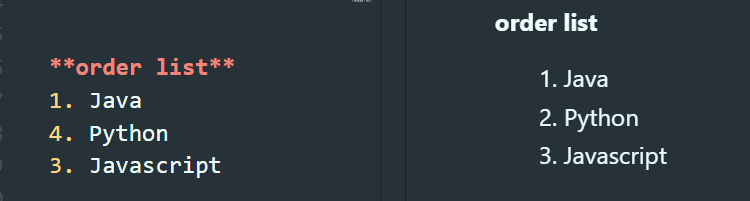
for adding the order list, just add the order number of the list.
Syntax
1. order-list-1
         1. sub-order-list-1
         2. sub-order-list-2
2. order-list-2
3. order-list-3
Note: If you change the order number of the list then the output will remain the same.
See the attached screenshot below
Code
If you want to represent a text as code then add Backtick(`) symbol before and after the text.
Syntax
`let' is a keyword in javascript
Fenced code block
If you want to add a block of code to your README file then use three backticks (```) symbols before and after the code block.
Syntax
  {
  "firstname" : "Gaurav Kumar",
  "age" : "24"
}
Strikethrough
Add two tilde(~) symbols before and after the text.
~~999~~
Link
You can also add links in the README file
Syntax
[link-name](path of URL)

//Example
[Google](https://www.google.com)
Note: you can also pass link information in parenthesis() with the path of the URL. like [Google](https://www.google.com "Google")
So, when you hover on the link you will see "Google" text.
Image
You can insert an image in your README file
Syntax

//Example

Note: If the image will be not rendered then 'alt-text' will be shown
Horizontal line
Syntax
***
See the screenshot below

Table
You can add a table in your README file
Syntax
| PHP | JAVA | PYTHON |
| ---- | --- | ---- |
| laravel | spring | Django |
| Yii2 | hibernate | flask |
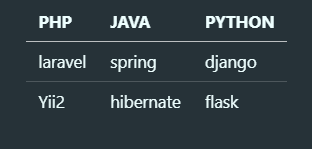
'PHP', 'JAVA' and 'PYTHON" are the heading of the table, and 'laravel', 'spring' etc. are the data of the table.
The output of the above table command will be
So, in this article, you learned what is README file and why we need this file in our project also we covered the basic commands that make the README file more user-friendly.
For more information related to the README file visit Github

